
Cost Center Management
Assign different cost centers to departments and use them to evaluate orders and budgets.
The purpose of a cost center is to link certain purchases in the online shop to people, projects or locations. It can be added item by item, but it can also be applied to complete orders.

How does it work?
- Go to 'My Würth' and click through to 'My account'
- In the customer settings, choose the cost centers section
Settings
- In the settings, indicate whether entering a cost center is mandatory or not
- Click save
Create cost centers
- When creating a cost center, enter a name and a description. (Please note: only use capital letters, numbers, spaces, hyphens, commas and full stops in the name)
- You can also choose the option partner number as cost center. This way, the order is linked to the purchaser’s partner number. This allows you to see who placed the order
- Click save
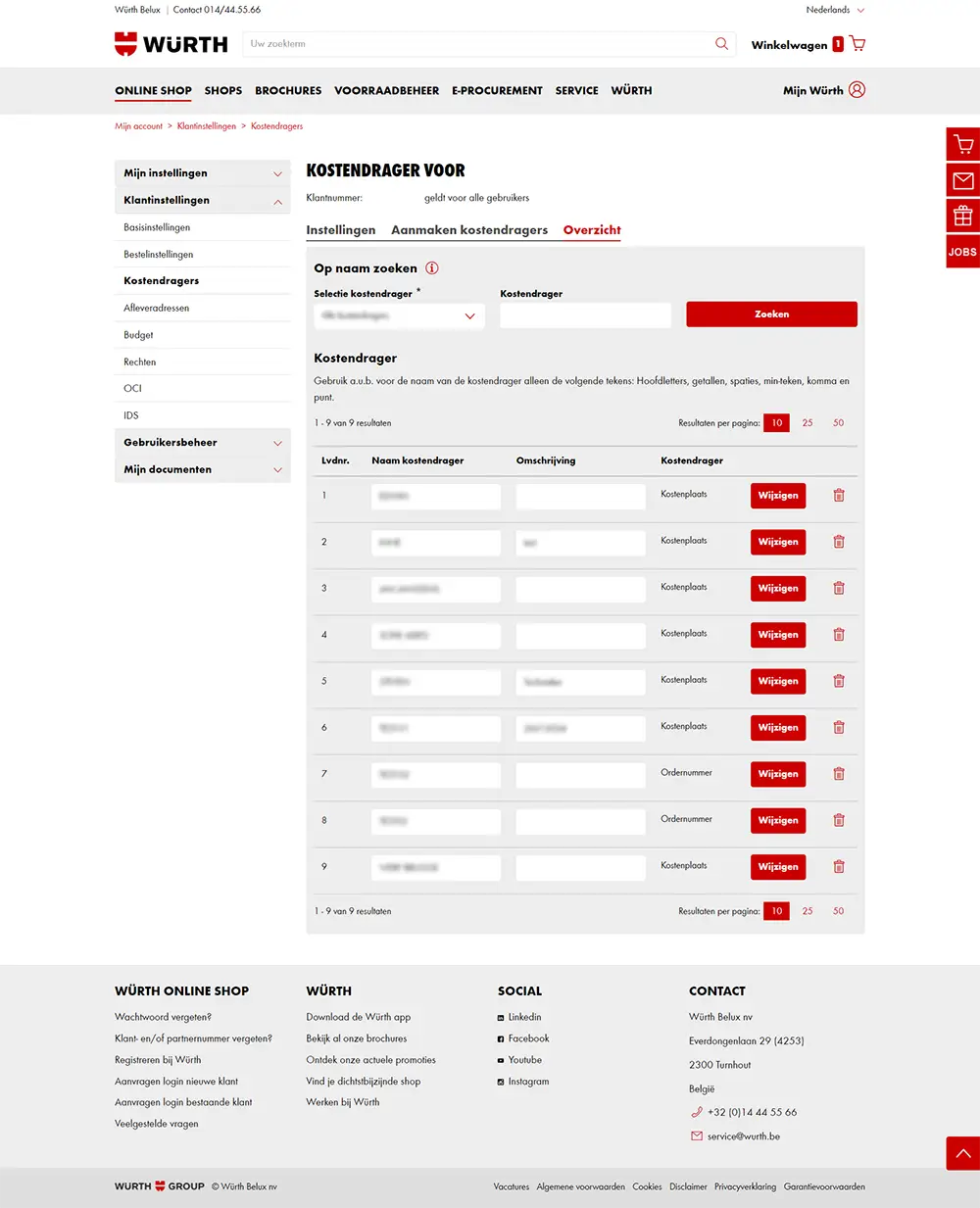
Overview
- The overview displays all cost centers and the possibility to make changes
Add cost center to shopping cart
When you click ‘Proceed to order’ in your shopping cart, under ‘Additional order details’ you will get the option ‘Cost center’. Enter the cost center here (or partner number if applicable) and the order will be linked to the cost center.
Add cost center to item
When you open your shopping cart, you will see the option ‘Cost center […]’ under the description of each item. Enter your cost center here and choose the relevant option under ‘Apply changes’.
Benefits
- Overview of purchases, items, costs, etc. for each cost center
- Possibility to create analyses in Excel
- Possibility to generate statistics for specific periods