
Add online shop to favorites
By following the instructions below, the Würth online shop will be added to your favorites menu:
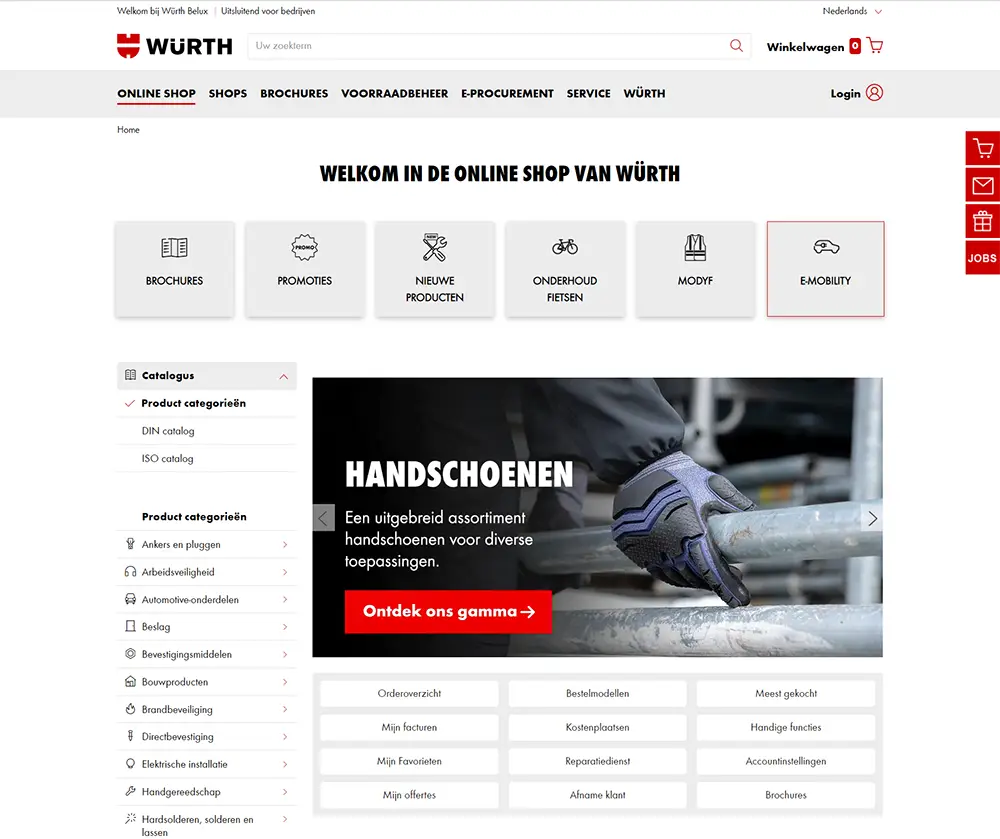
- Go to the Würth online shop
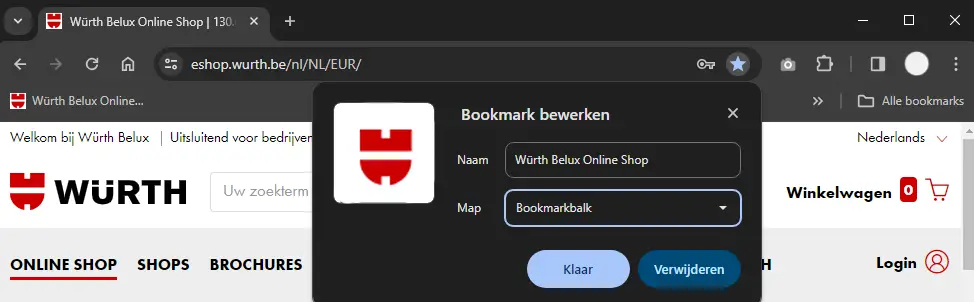
- Click the star icon at the top right of your address bar
- Click on 'edit'. In the 'folder' field, decide whether the site should be placed in the bookmarks bar or other favorites. We recommend placing it in your bookmarks bar
- Click save
Create a shortcut
By following the instructions below, you will from now on be logged in immediately to the Würth Online Shop:
- Create a new shortcut on your desktop (Right-click > New > Shortcut)
- Copy and paste the link below into the shortcut field: https://eshop.wurth.be/is-bin/INTERSHOP.enfinity/WFS/3103-B1-Site/nl_NL/-/EUR/ViewLogin-Process?LoginForm.CustomerNumber=?????????&LoginForm.Login=??????&LoginForm.Password=?????
- Replace the ????? with your customer number, partner number and password (This must be done carefully without extra spaces)
- Click Next and enter "Würth Online Shop" as the name
- Click save
Personalize your shortcut by adding the Würth logo.